


Windows 11 Users Empowered by Group Policy to Improve Experience
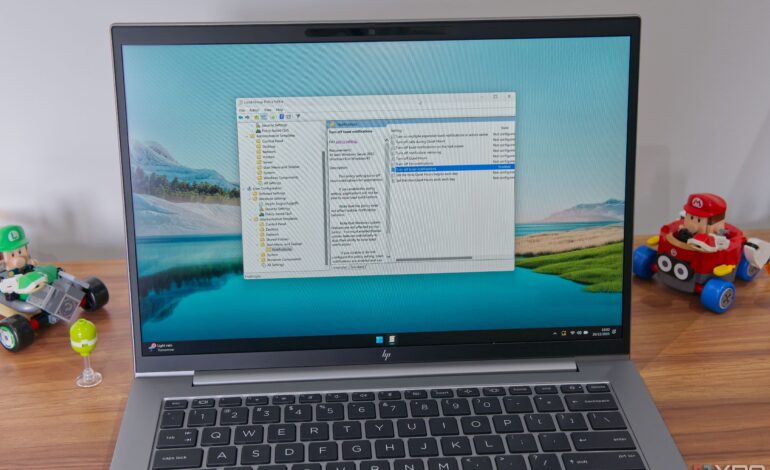

Windows 11 has become the most widely used operating system globally, yet it is not without its flaws. Many users find various features frustrating, often leading to diminished productivity. Thankfully, those with the right version of Windows can leverage the Group Policy Editor to enhance their experience significantly. This tool, available in Windows 11 Pro and higher editions, allows users to disable several default settings that hinder usability.
Control Automatic Updates
One of the most common grievances with Windows is its automatic updates, which can disrupt workflows at inconvenient times. Although updates are vital for system security, they often prompt users to restart their computers when they need them the most. To mitigate this issue, the Group Policy Editor provides specific settings that can help manage update installations effectively.
Users should navigate to the folder labeled Computer Configuration > Administrative Templates > Windows Components > Windows Update > Manage end user experience. Here, they will find the option titled Configure Automatic Updates. By enabling this policy, users can select a preferred mode for updates, with option two—Notify for downloads and auto-install—recommended for those who wish to maintain control over when updates install.
Additionally, users may want to enable the policy named No auto-restart with logged on users for automatic update installations. This legacy policy stops the computer from automatically restarting, thus reducing the risk of interruptions that could lead to data loss.
To further refine the update process, users can disable driver updates that may cause compatibility issues. Within the same Windows Update folder, there is a policy called Do not include drivers with Windows Updates. Enabling this will ensure that Windows does not attempt to install potentially incompatible drivers, allowing users to obtain drivers directly from their hardware manufacturers.
Disable OneDrive and Notifications
Another point of contention for many Windows 11 users is the mandatory integration of OneDrive. During the initial setup, users are required to log in with a Microsoft account, which activates OneDrive by default. This cloud storage solution may clutter a user’s desktop and consume valuable storage space.
To disable OneDrive completely, users can again utilize the Group Policy Editor. By navigating to Computer Configuration > Administrative Templates > Windows Components > OneDrive, they will find the option Prevent the usage of OneDrive for file storage. This setting can be beneficial for shared computers, ensuring that all user accounts are free from OneDrive’s automatic activation.
Finally, many users are overwhelmed by constant notifications that interrupt their activities. While there are simplistic methods to manage notifications, such as turning them off per application or activating Do Not Disturb mode, Group Policy offers a more balanced solution. To disable toast notifications across all applications, users can go to User Configuration > Administrative Templates > Start menu and Taskbar > Notifications and enable the policy titled Turn off toast notifications. This setting allows users to retain essential notification elements while eliminating the distractions that pop-ups create.
Windows 11 may present several challenges, but tools like the Group Policy Editor can significantly enhance the user experience. Unfortunately, this feature is not available in the more common Windows 11 Home edition, which may limit the options for a large number of users. While it makes sense for advanced settings to be reserved for professional environments, many individuals use their computers for work, making access to these customization options crucial for improving their overall experience.